Posted by: Eli Lee

Nowadays more people are watching and creating more videos online either through Facebook, Youtube, Instagram, or TikTok. You might of even made a video yourself once whether it’s for class or just for fun. Making videos is a great way to be creative with your editing skills and entertain or educate your viewers on the content that you are providing them.
I will be going over how to make a quick and easy video using the program called IMovie. This program is only compatible for IOS or Macbook users only. I will first discuss about how to start your video and how to upload. Next I will then go over the types of edits that you can apply to your video and then lastly explain how to upload your video.
Getting Start
Step 1 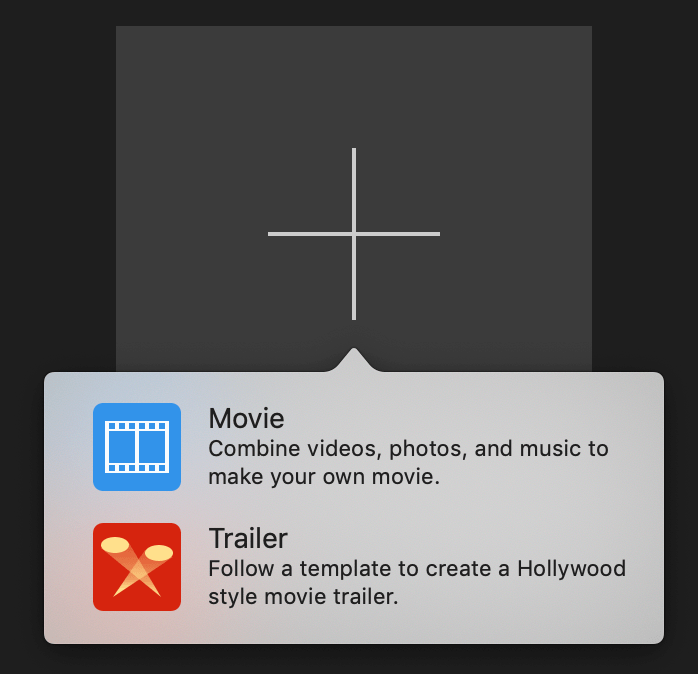
Step 2 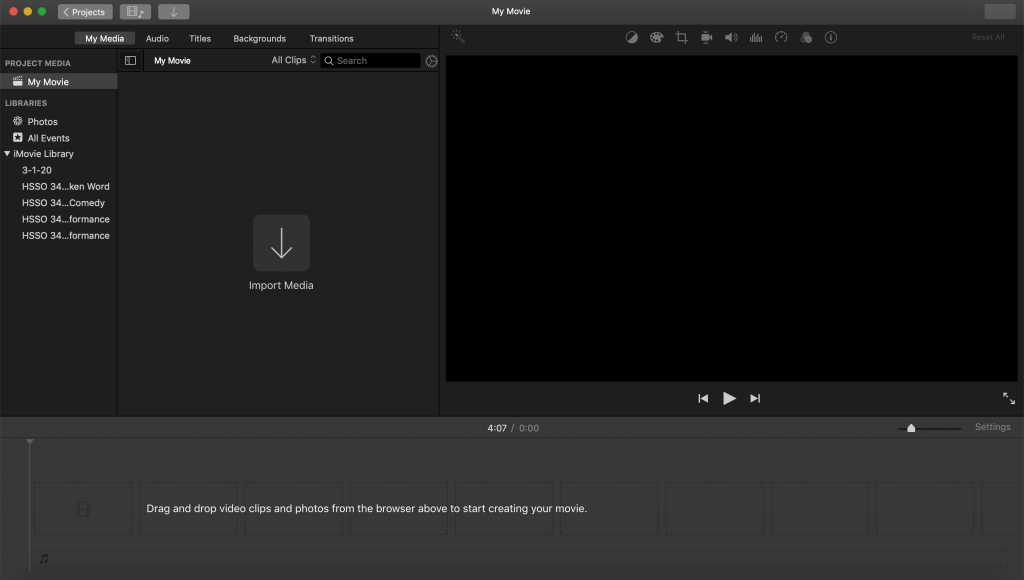
Step 3 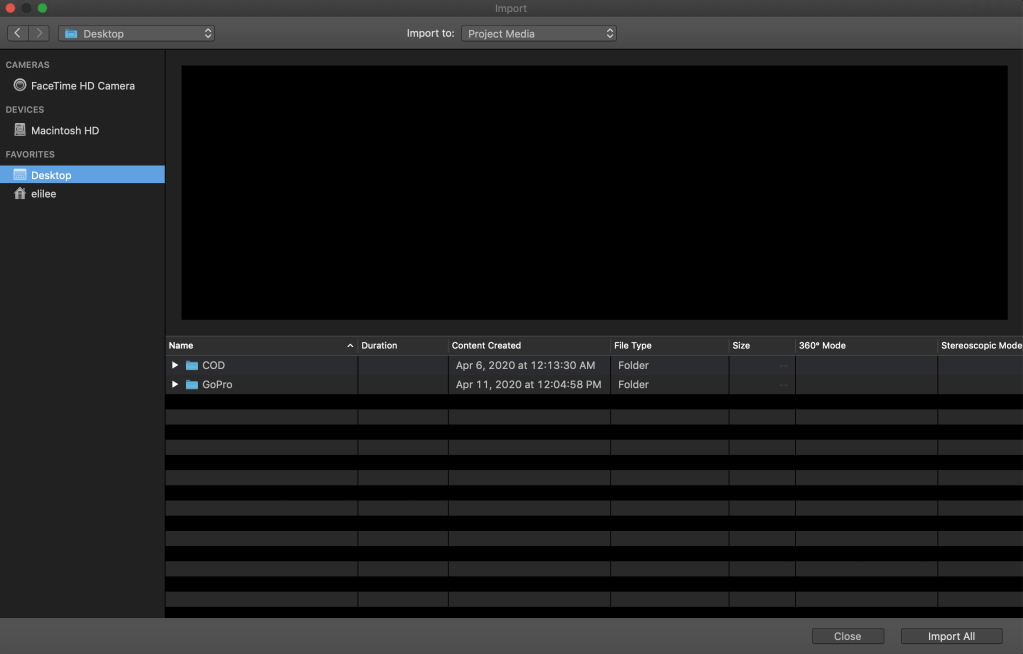
Step 4 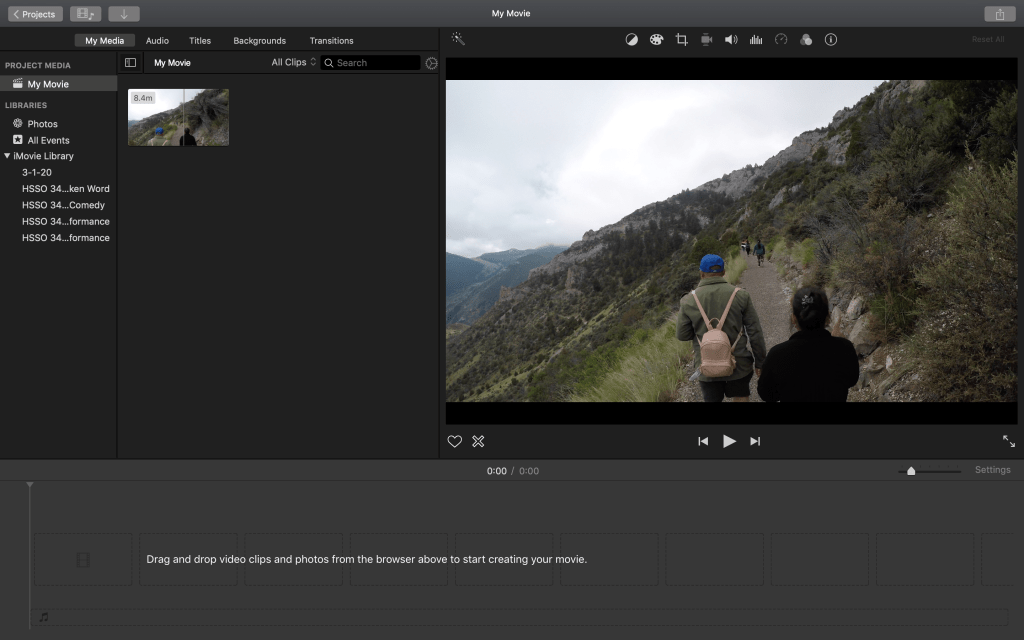
Step 5
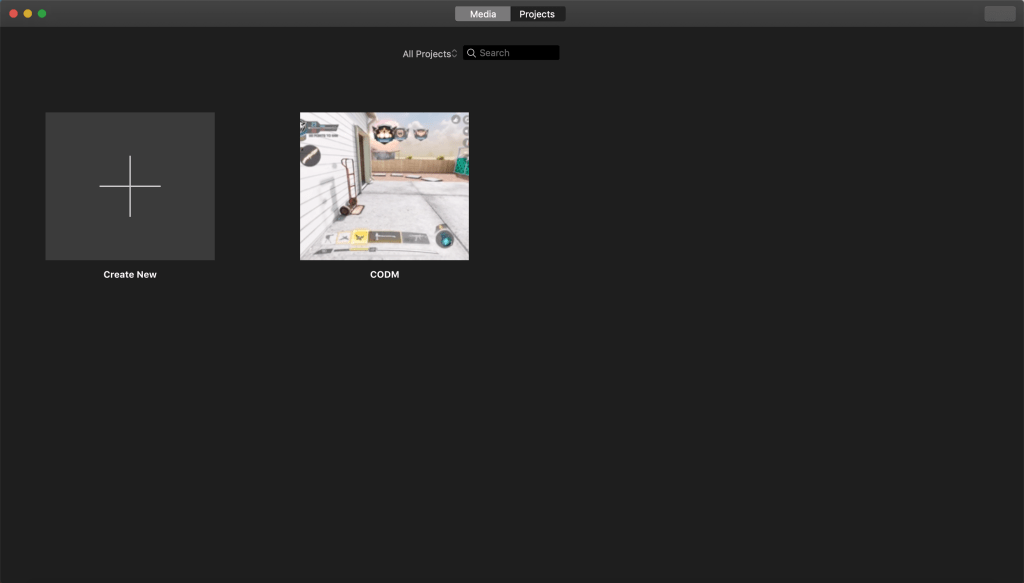
Step 1: When you first open the app or program it will show you this screen. If you had created videos using IMovie before they will also appear here.
Step 2: To create a new video you will click on the + symbol and it will open up the options “Movie” and “Trailer” for you. “Movie” is typically for longer videos while “Trailer” will limit the amount of video content that you can have but allow for different edit options.
Step 3: This displays your main editing page and one of the first things you will probably do is upload content. To do so you would click the down arrow to import an media that you might have
Step 4: Listed will be a variety of storage places that you have on your computer or have connect your computer too. Depending on where you saved your content you will locate it and tap on it to upload it onto your main edit page.
Step 5: Once your video has be uploaded into IMovie it will display in “My Media,” allowing you to drag and drop your content into the editing dash board below.
Editing Options









Color Balance: This allows you to balance the colors of your videos if you feel like certain colors are more brighter or darker than others.
Color Correction: This allows you to change the colors of your videos
Cropping: Cropping parts out of you video may sometimes be needed because sometimes you can have black side bars at the sides of your videos which can be removed.
Stabilization: Depending on how you are recording your footage can have a lot of movement to it making the video difficult to follow or view. This will allow you to stabilize your video making it more smoother and viewable.
Volume: Most of the time your video and background music will different audio to them. It is important to use this edit so that you can raise or lower your video audio so that it doesn’t over power the background music. Lowering it too much can also have flaws too.
Noise Reduction and Equalizer: Editing out or reducing the noises or those very scratch audio is important to get rid of as viewers might find it unpleasing to listen too.
Speed: If you tend to do a lot of time-lapse video or want to just speed a video up. This tool can increase your video play speed.
Clip Filter and Audio Effects: Add a default Filter provided from IMove and audio Effects.
Clip Information: Shows the duration of the video.
Additonal Features
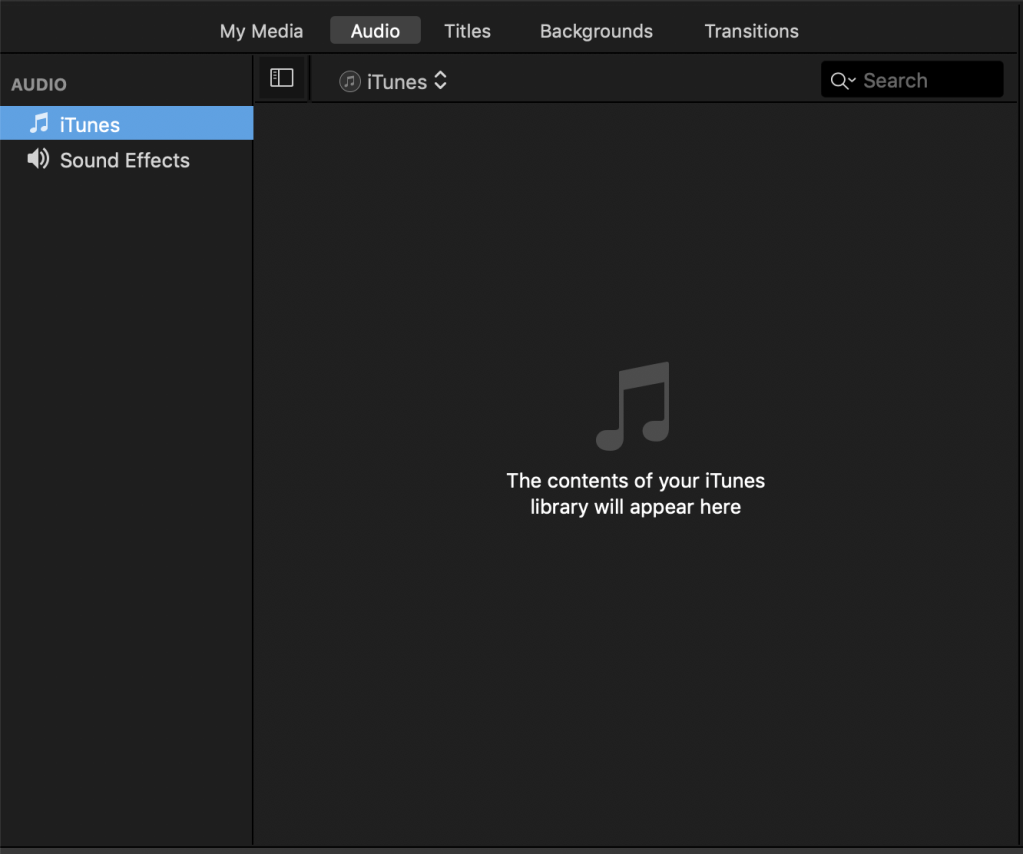
Audio: Having the right audio with you content is always important. You wanna be able to match the correct audio
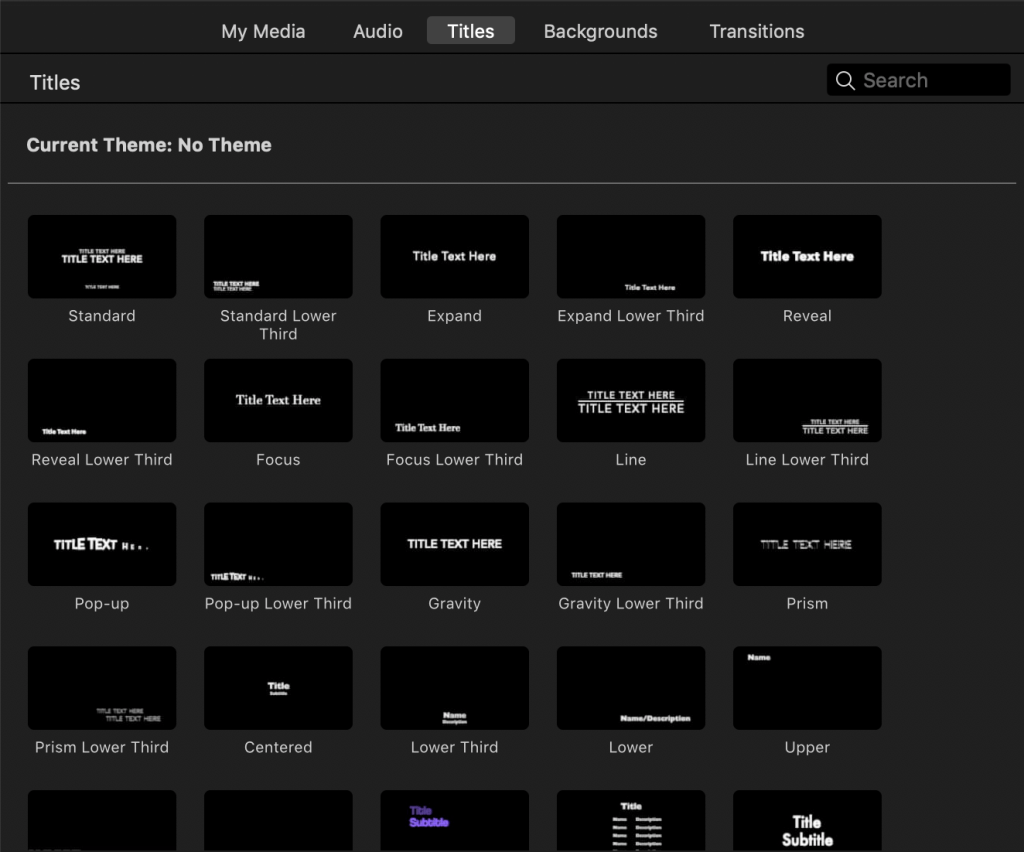
Titles: Adding words or subtitles can greatly improve your video because it can provide viewers additional content or understanding of your video if your audio is difficult to understand or not needed.
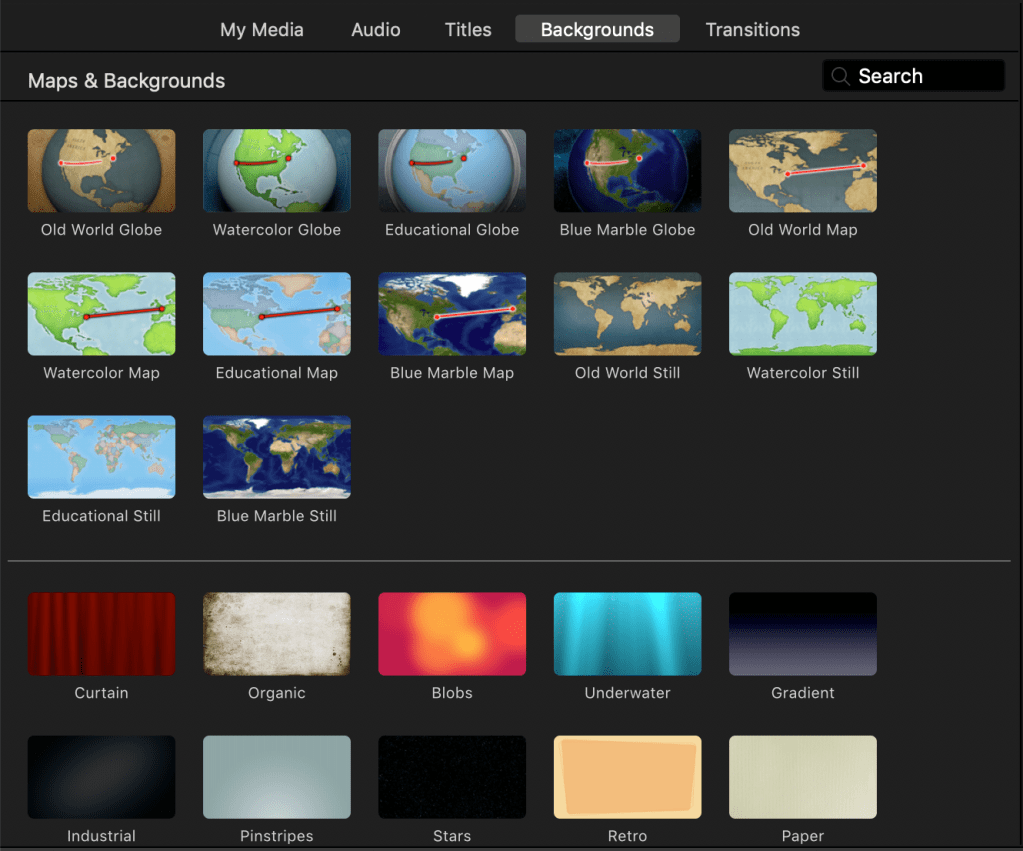
Backgrounds: Backgrounds are usually added as an introduction or ending of your content. It makes for a great way to start are video or to add breaks in between different clips.
Transitions: Having a good transition to the next clip helps with the flow and creativity of your videos. It’s a small feature but it can impact the quality of your videos.
Uploading and Downloading
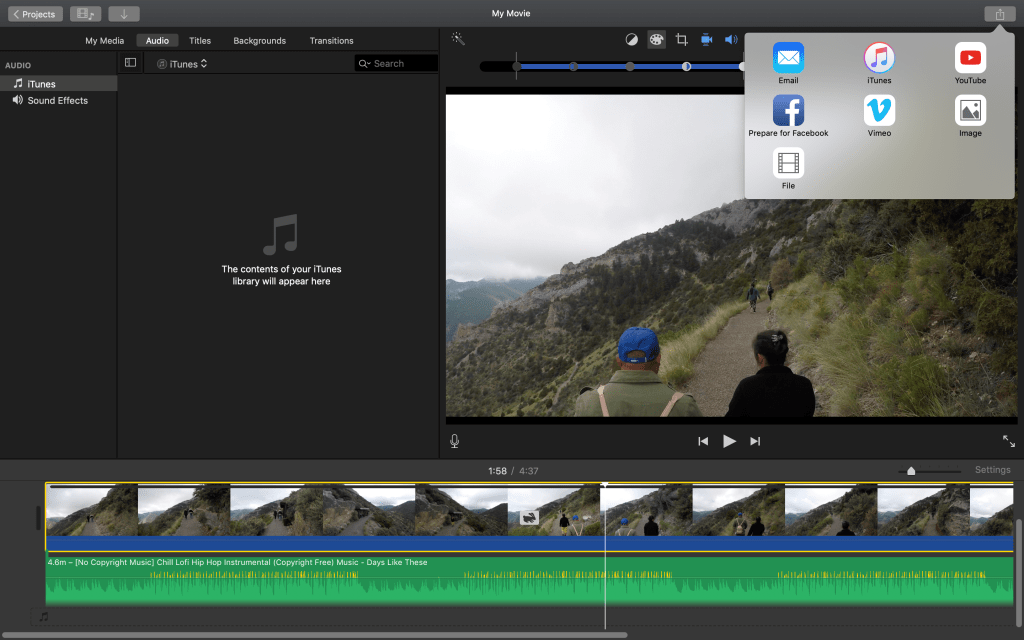
Step 1 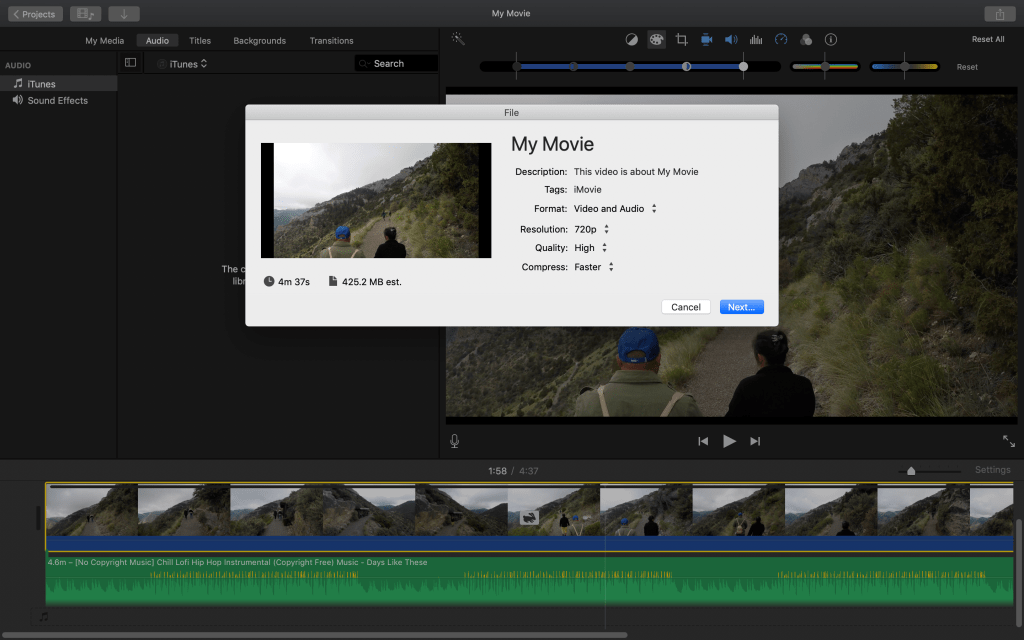
Step 2 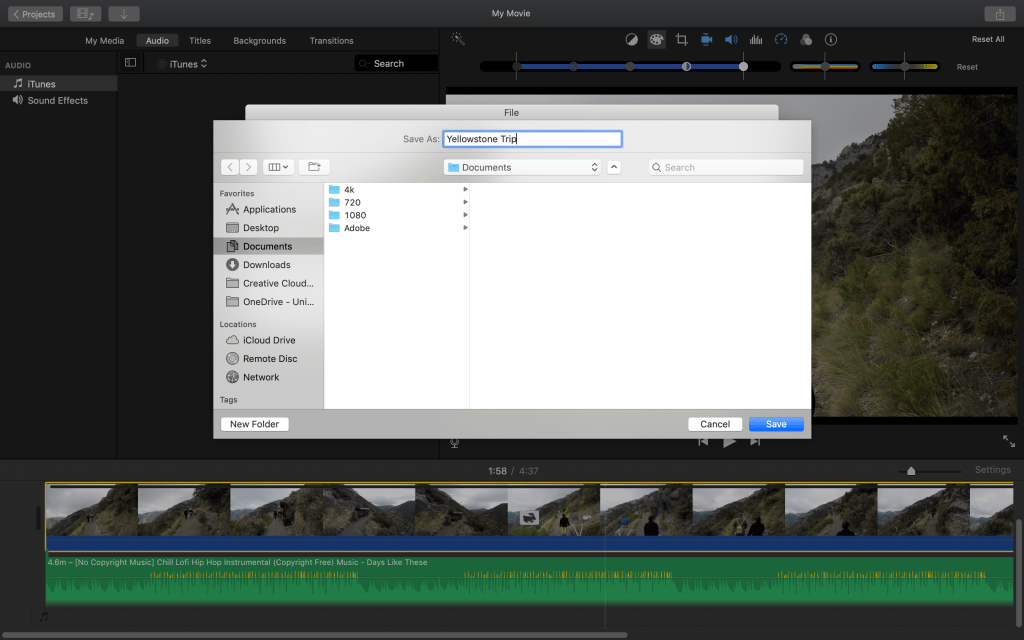
Step 3
Step 1: IMovie allows you several options on where you wanna upload your video.
Step 2: You will then name your video and then choose the resolution that your want.
Step 3: If you choose to download it, it will ask you where you wanna save it on your computer.
Congratulations! You now understand the basics on how to make a video on IMovie! Making videos can very time consuming and take a lot of work but at the end it is always worth it! Your video doesn’t always have to have a purpose, it can be completely random or just for fun. I hope that you can go out and make your own videos and with as much creativity as possible!
References:
https://www.kindpng.com/imgv/iombwJb_10-1-13-logo-imovie-png-transparent-png/
 RIPE Magazine | Volume 1